
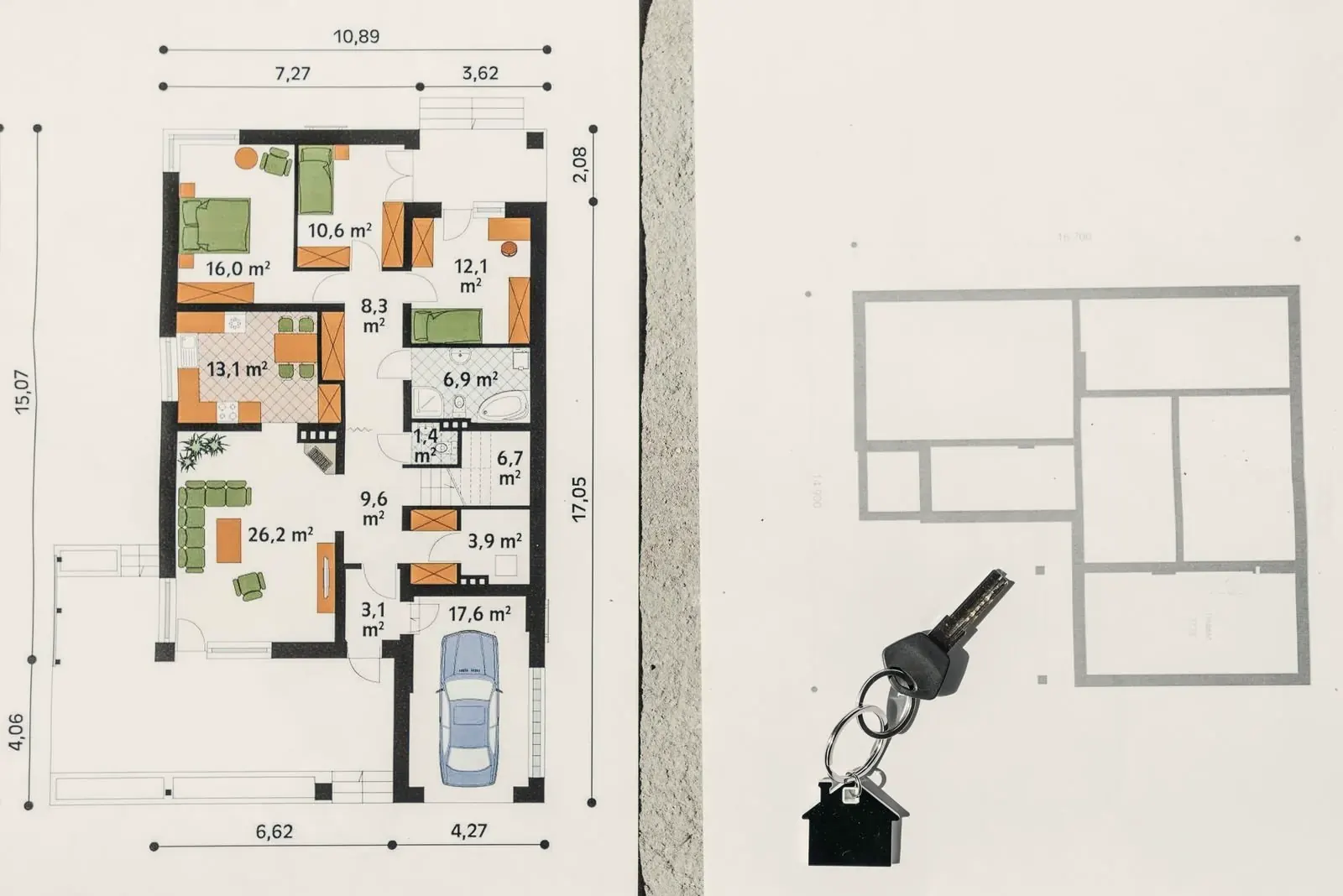
Turn a floor plan photo into a layout plan
Photograph the plan on the kitchen table, drop in the architect's PDF, or bring an IFC model or a 3D scan. Set the scale once, trace the room — or let the planner find it — and you get a real layout plan: every plank placed, counted and priced. No redrawing the room wall by wall.
Most free planners start with an empty canvas: you measure the room, then redraw every wall with the mouse. If a drawing of the room already exists — as a photo, a PDF, a DXF, an IFC model or a scan — that work has been done once already. Autolay reads the file and lets you trace on top of it, so the room in the planner is the room on the drawing.
From photo to layout plan in three steps
Bring the drawing in
Drag the file onto the planner: a phone photo or screenshot (JPG, PNG, WEBP), a PDF, a DXF, an IFC building model or a 3D scan (GLB, GLTF, OBJ, PLY). The drawing opens in your browser — nothing has to be e-mailed anywhere.
Set the scale and trace the room
Draw over one length you know — a door width, a dimension line — and type it in; every number after that is a real measurement. Then trace the outline, or click into the room and let the built-in segmentation find the walls. Several rooms, recesses and door openings are all allowed, and an IFC model brings its named spaces with it.
Get the layout plan
Pick the material and the laying direction, and the planner places every plank or tile: the piece count, the cut pieces at the walls, the waste percentage and the material cost. Save the project, or export the laying plan and the shopping list as one download.
How the planner takes you from the traced plan to the material list, screen by screen and with video, is shown in the Guide: make a flooring layout plan in 6 steps.
Why importing the drawing beats redrawing it
In the July 2026 interface audit of the free floor planners, none of them took a file of your room: the outline had to be drawn by hand, from measurements you take yourself. Importing it changes four things:
- The room comes from the drawing, not from your memory of it — recesses, niches and door openings are already in the right place.
- One scale calibration replaces measuring every wall; everything after it is a real measurement.
- The formats a job actually arrives in: photo, screenshot, PDF, DXF, IFC building models and 3D scans — no proprietary import format.
- Nothing sits behind an e-mail address or an account: upload, trace, read the plan.
Questions about uploading a floor plan
- Which files can I upload?
- Photos and screenshots (JPG, PNG, WEBP, GIF, BMP, SVG), PDF drawings, DXF, IFC building models and 3D scans (GLB, GLTF, OBJ, PLY). DWG is not read — export it as DXF or PDF first.
- Does it have to be a proper architectural drawing?
- No. A phone photo of a printed plan, a screenshot from a listing or a hand sketch with one known length all work: the scale comes from the length you calibrate, not from the file.
- How does the planner know the real dimensions?
- You draw over a length you know — a door width, a dimension line, a wall — and type it in. Everything after that is computed in feet and inches. DXF and IFC files carry their own units and need no calibration.
- Is it free, and do I need an account?
- The planner is free in the browser and runs without an account. You only sign up if you want to save the project and come back to it later.
Try it on the demo floor plan
Upload your floor plan and the free planner works out the exact packs and waste before you order.
Try the demo plan