
Make a flooring layout plan, step by step
The planner takes you from floor plan to material list in six steps: select the plan, scale it, click the room, choose the material, set the layout and generate the plan. It works out the waste, packs and cost for you – free, and no account needed.
The whole run in one video
From an empty planner to the PDF: click a room, adjust the corners, add more rooms, choose material and pattern, then check the result and share it.
Chapters
Read the transcript
- 0:00Free in your browser – no account needed.
- 0:03Click a room – door openings are already closed off.
- 0:10Detection cut around the radiator? Remove corners – the floor runs underneath.
- 0:16Drag corners or type exact positions.
- 0:25Add more rooms – they all go into one laying plan.
- 0:32Pick the flooring and pattern – or enter your own plank size.
- 0:44Every plank placed, every offcut reused: quantities, waste and cost.
- 0:54Download the plan as a PDF or share it with a link.
Select plan
Everything starts from the floor you’re laying. The planner takes whatever you have – from a phone photo to a building model – and with no plan at all you start from the room’s dimensions.
Choose or upload a plan
Start with the example plan or upload your own: a photo, PDF, building model or 3D scan. You don’t need an account for any of it.
No plan? Type the room’s size
Type the length and width and the room takes shape as you type. Then change any wall’s length in the table of the “Room dimensions” editor, and the room redraws straight away.
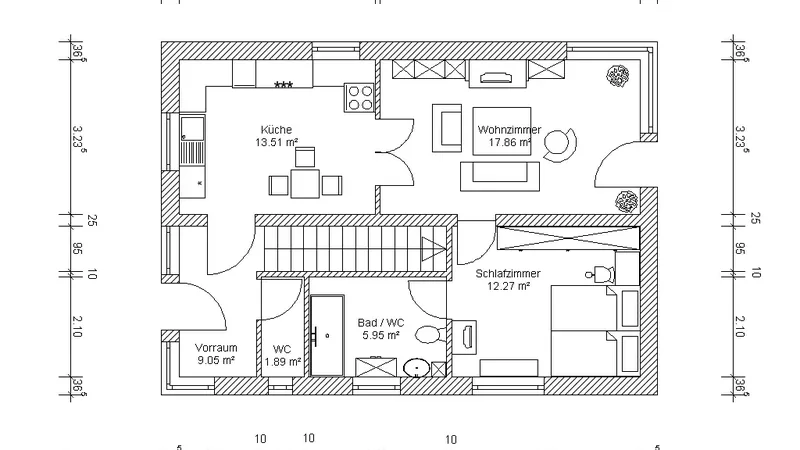
Floor plan
PNG · JPG · PDF · DXFA photo or scan of a 2D plan is enough. Set the scale from one known distance – most plans carry a dimension line – and the “Scale plan” step walks you through it.
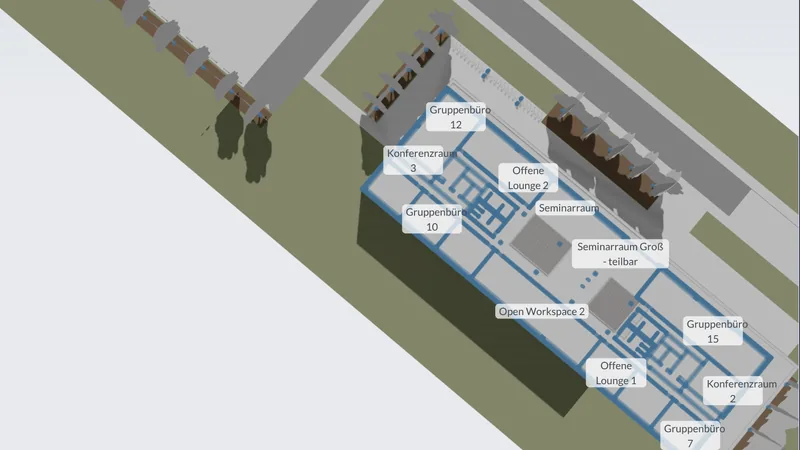
Building model (BIM)
IFCCommon for new buildings designed with a building model. The viewer shows the model, detects the levels automatically and lets you pick the story you’re laying the floor on.
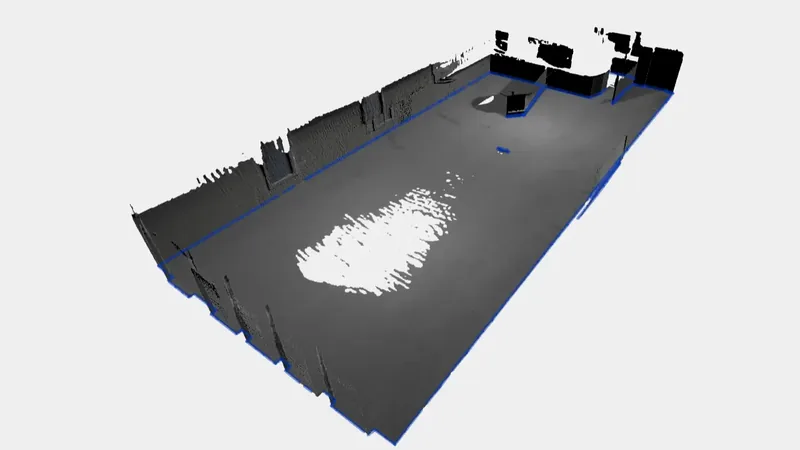
3D scan
GLB · glTF · OBJ · PLYFrom a robot or any 3D scanner. Floor detection finds the room’s outline in the scan – this is the input our laying robots work from.
2D plans vary in precision. Treat the first result as an estimate until you’ve confirmed one measured distance on site.
Scale plan
A photo has no scale of its own, so the planner asks for one known distance – usually a dimension line on the plan. Everything after that, from area to cuts, is measured against it. For a building model or a 3D scan this step is “Crop model” instead: drag the arrows around the floor you’re laying; no scale is needed.
Scale from a known distance
Hold Ctrl, click both ends of a dimension line and type its length; on a phone or tablet, turn on “Action” in the View panel and tap both ends. The example plans are already to scale.
Outline
This is where you tell the planner which floor to lay. Click the room and it takes the outline. The detected outline is a proposal you can correct: drag, add or remove corners – so the floor runs under a radiator, for example.
Try the demo plan
Click the room
Move over the plan and the room under your pointer lights up; one click takes its outline and closes door openings with a straight line. “Detect again” moves on to the next room it found.
Move a corner
Drag a blue corner point and it snaps to a right angle. Hold Shift or Ctrl to move it freely; click the corner to see its position and type it exactly.
Add a corner
Click the “+” in the middle of a wall and a new corner appears there. Two new corners and one moved corner turn the rectangle into an L – for an alcove or a pillar, say.
Remove a corner
Detection sometimes cuts out things the floor runs under, such as a radiator. Remove the corners of that notch and the wall runs straight again. On a computer, right-click the corner; on a phone or tablet, tap it and choose “Remove corner”.
Several rooms in one plan
“Add another room” lines up the next one. Trace a whole apartment and the planner splits it into rooms at the door openings.
Trace the walls by hand
If a room isn’t detected, click the blue wall lines one after another; “Erase” removes a wrong section. On hatched walls this doesn’t always work cleanly – typing the room’s dimensions can be quicker.
Material
The size of the floor covering decides how many cuts there are and how much you end up buying – a long plank cuts differently from a square tile.
Pick a floor or enter your own size
Choose tile, laminate or parquet from the catalog, or enter the size of your own product. The plan is calculated with exactly those dimensions.
Layout
This is where you decide how the floor will look – and how much waste it makes. The planner works each option through instead of guessing with a flat allowance.
Pattern, direction, starting point
Seven patterns, from straight rows to herringbone and chevron, plus the laying direction and, optionally, the starting point. The pattern changes the cuts – and with them the quantity.
What you set in this step
- Pattern style
- “Straight (grid)” lays every row the same, with the joints in line. “Staggered (1/2)” and “Staggered (1/3)” shift each row by half or a third of a plank, and “Straight (optimized)” starts every row with the offcut from the one before, so the least material goes to waste. “Herringbone” and the two chevrons lay a zigzag. The preview redraws as soon as you switch.
- Layout direction (°)
- The angle the planks run at. The buttons under “Align to walls” take the direction of the room’s walls in one click – usually the cleanest choice, because the rows then run parallel to the walls.
- Laying start point (optional)
- Click “Pick on plan”, then the spot on the plan where laying begins – by the door, say, or along the straightest wall. Leave it empty and the planner picks the start itself.
- Minimize waste
- Asks the planner to search the laying start for the least waste and shows the waste before and after. “Undo” puts it back. The button appears when the plan has a single room; a start point you picked yourself always decides.
- Installation profile
- “Standard” keeps a 15 mm gap to the walls, end pieces of at least 30 cm and a stagger of at least a third of a plank between rows. “Uncertain measurements” allows 8 mm of measuring tolerance and marks the edge pieces to be measured and cut on site. “Premium finish” avoids thin slivers: end pieces from 40 cm, a last row at least 8 cm wide. Every value stays visible below the profiles and can be changed for the plan, down to the saw kerf; with an account you save them for your next plans.
How much waste a floor makes depends mainly on the room’s shape, the size of the tiles or planks and the pattern: many corners, large formats and zigzag patterns cost more material.
Every usable offcut goes back on the floor
For your chosen material and pattern, the planner reuses every usable offcut – carrying each row’s leftover into the next – to shrink your shopping list and cut waste. It still follows the usual laying rules:
- Offcuts reused wherever they fit
- Joints staggered from row to row
- Expansion gaps kept along the walls
- A sensible minimum size for edge pieces
Generate & save
One click lays the floor piece by piece with exactly the material, pattern and outline you set – not an area times a waste factor. What comes out is yours to download or share.
Download the material summary with the full cost estimate, and a layout plan precise enough to work from – every piece numbered on the plan, with the building outline overlaid so you know where each one goes.
Send the PDF to your supplier or fitter. Without an account you can plan, download the PDF and share a link; with a free account you can also save the project with “Save to dashboard”, reopen it later and withdraw your links.
Result, PDF and share link
You see the cost, the waste percentage, the packs and the full and cut pieces. Download the plan as a PDF in one click, or send a link that expires after 90 days; with a free account you can withdraw it at any time.
Where to enter your prices
Prices go in once the plan is generated, on the result in this step. Without a price of your own, the planner uses a guide price from its catalog and marks it “reference price”.
- Floor price ($/ft²)
- Right under “Total estimate”. Type what your floor costs per ft²; the planner prices the whole packs you buy, not just the area you lay.
- Price estimate → Simple
- If you know the pack price, enter “Pieces per pack” and “Price per pack”. A pack price replaces the price per ft², and the planner shows how many packs you need and how many pieces are left over.
- Extras
- Pick a product for “Underlayment”, “Adhesive”, “Grout” and “Baseboard”, or “None”. The quantity comes from the product’s coverage, bought in whole units; the baseboard leaves out the door openings, and if your floor needs primer, it is listed in liters. Only what your floor needs is offered – carpet tiles get no grout. The catalog products carry guide prices.
- Price estimate → Advanced mode
- Work with your own prices per ft²: “Floor material”, “Subfloor”, “Adhesive” and “Installation” for the fitter’s labor. A price you type for “Adhesive” replaces the catalog price of the adhesive you picked, and one for “Subfloor” that of the underlayment; the quantities stay on the list.
- Currency · Metric / Imperial
- Both sit above the list of results. The price fields follow the unit: per m² or per ft².
The total appears at the top as “Total estimate”, next to “Packs to buy”, and goes into the PDF with every extra.
SHOPPING LIST
- Net area
- 19.84 m²
- Laid floor
- 19.56 m²
- Waste
- 1.8%
- Total physical pieces
- 83
- Packs to buy
- 11
- Total estimate
- €1,224.80reference price
Frequently asked questions
- What can I use as a floor plan?
- A photo, PDF or DXF file of a floor plan, an IFC building model or a 3D scan. Without a plan, just type the room’s dimensions – and there’s an example plan to try it out on.
- Do I have to trace the room?
- No. Click inside the room: the planner finds the walls and takes the outline, closing door openings with a straight line. If a wall is off, drag its corner into place. Only when a room isn’t detected at all do you click along the wall lines by hand – on hatched walls that doesn’t always work cleanly, and typing the room’s dimensions can be quicker.
- Can I plan several rooms at once?
- Yes. “Add another room” lines up the next one, and the layout plan covers them all. If you trace a whole apartment in one go, the planner splits it into rooms at the door openings.
- How do I add or remove a corner?
- Click the “+” in the middle of a wall and a new corner appears there, for an alcove, say. How to remove a corner is explained in the next question.
- Detection cut out a radiator – what now?
- Detection sometimes leaves out things the floor runs under. Remove the corners of the notch – right-click them on a computer, or tap them and choose “Remove corner” on a phone or tablet. The wall runs straight again and the floor under the radiator is counted in the plan.
- I don’t have a floor plan – can I still use it?
- Yes. Open “Room dimensions” and type the length and width; the room appears as you type. Then change any wall’s length in the table.
- Can I change the material after generating?
- Yes. Switch the tile, plank or pattern and generate again – the full and cut pieces, packs and waste update to match.
- Where do I enter the price of the floor, the adhesive or the underlayment?
- In the last step, once the plan is generated. The floor’s price per square foot (or square meter) goes right under “Total estimate”, a pack price under “Price estimate”. Adhesive, underlayment, grout and baseboard are picked as products under “Extras”; without prices of your own, the planner uses guide prices.
- What do I get at the end?
- The cost, the waste percentage, the number of packs and every full and cut piece. Download the layout plan as a PDF or share it with a link that expires after 90 days; with a free account you can withdraw it at any time.
Still have questions?
Ask us directly – our team is glad to help you get the most out of AUTOLAY.